Bulk SEO Management
Overview:
Within the CMS of your MaxCommerce website you have the ability to bulk manage your SEO Data.
Here you are able to download a formatted CSV spreadsheet containing existing data, columns and fields which you can then manage. Once complete you can then upload directly into the CMS to apply the changes.
Where to find me CMS -> Settings -> General Settings -> Data Import
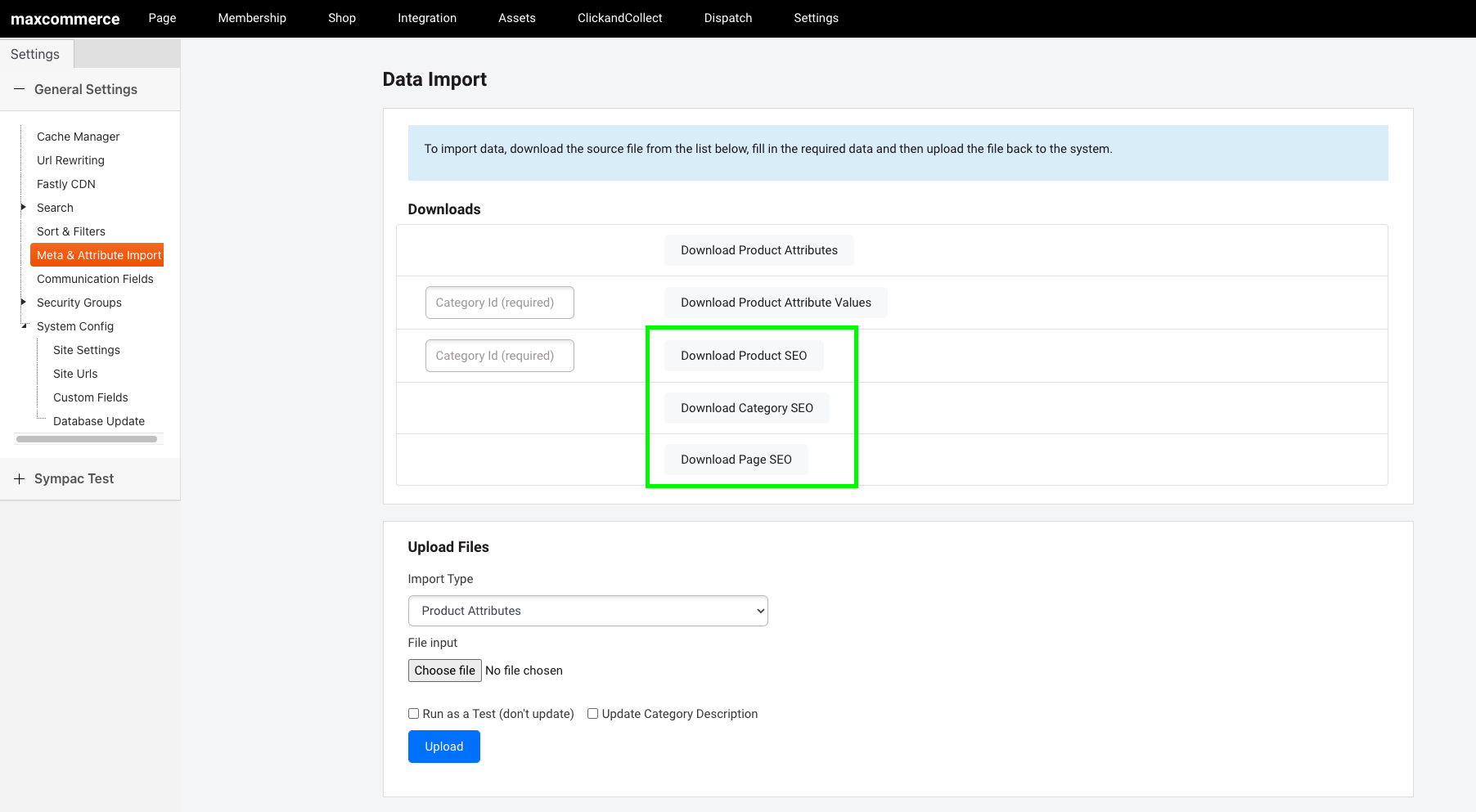
How to Bulk Update your SEO Data:
To bulk manage your SEO data follow the below steps:
- Click to download the corresponding SEO CSV File:
- Download Product SEO
(For performance purposes you need to enter in the corresponding category ID for which products you would like to download to manage) - Download Category SEO
- Download Page SEO
- Download Product SEO
- Once downloaded save this file to your computer
- Apply your changes
- Once happy go back into the CMS Data Import Screen
- Go to the 'Upload Files' section.
- Select the Import Type from the dropdown (this will match the CSV file you originally downloaded above)
- Click the 'choose file' button to find the saved CSV on your computer
- Then click the 'upload' button
- The system will advise once the upload is complete and you can then spot check your upload by navigating to those items within the CMS
Download File Data
Within the CMS of your MaxCommerce website you also have the option to bulk manage your SEO for your categories.
Category SEO
The below explains the different columns within the formatted spreadsheet and advises which column you can manage/edit as needed
Column From Spreadsheet | Details of Data |
Category ID | These are website ID references that belong to that category |
Parent Category ID | If the category is a sub category this is the website parent ID for where that category sits within your website. |
Category Name (edit) | Name of your category |
Meta Title (edit) | Meta Title for your category |
Meta Description (edit) | Meta Description for your category |
Meta Keywords (edit) | Meta Keywords for your category |
Category Descriptions (edit) | Category descriptions |
Product SEO
The below explains the different columns within the formatted spreadsheet and advises which column you can manage/edit as needed
Column From Spreadsheet | Details of Data |
Product ID | These are website ID references that belong to that product |
Product Code | This is the product code reference for that product |
Product Name | Name of your Product |
Meta Title (edit) | Meta Title for your product |
Meta Description (edit) | Meta Description for your product |
Meta Keywords (edit) | Meta Keywords for your product |
Product Descriptions (edit) | Description for product |
Page SEO
The below explains the different columns within the formatted spreadsheet and advises which column you can manage/edit as needed
Column From Spreadsheet | Details of Data |
Page ID | These are website ID references that belong to that page |
Parent Page ID | If the page is a sub page this is the website parent ID for where that page sits within your website. |
Page Name (edit) | Name of your page |
Meta Title (edit) | Meta Title for your page |
Meta Description (edit) | Meta Description for your page |
Meta Keywords (edit) | Meta Keywords for your page |
Site ID | This is for the website reference please leave as downloaded |