SEO for Shop Categories
Overview:
Optimizing SEO for shop categories is essential for driving organic traffic and improving user experience. MaxCommerce CMS provides built-in SEO tools to help you manage and enhance category pages efficiently.
This guide covers key SEO strategies and how to apply them within your MaxCommerce website.
Key SEO Strategies for Shop Categories
1. Optimize Category Page Titles
Ensure category page titles are clear, keyword-rich, and relevant to the products within that category.
Best Practice:
- Titles should be descriptive and search-friendly while sounding natural.
- Include relevant keywords without overstuffing.
Example:Instead of using a generic title like "Tools", use something more specific such as "Buy Affordable Power Tools | [Your Store Name]".
2. Write Effective Meta Descriptions
Meta descriptions influence click-through rates from search engines. Write compelling and keyword-rich descriptions that encourage users to visit your site.
Best Practice:
- Keep it concise (around 150-160 characters).
- Clearly explain what the category offers.
- Use a call-to-action when possible.
Example:"Shop high-quality power tools at [Your Store Name]. Discover the best tools for any project with free shipping on orders over $50."
3. Use Clear and Descriptive Category Names
Category names should be specific and aligned with search terms. Avoid overly generic names that do not indicate what users will find.
Example:Instead of "Tools", use "Power Tools" or "Hand Tools" for clarity.
4. Add Unique Category Descriptions
A well-written category description helps both users and search engines understand what the category contains.
Best Practice:
- Include relevant keywords naturally.
- Describe the types of products available and highlight key brands.
Example:"Explore our wide selection of power tools, including drills, saws, and sanders from top brands. Perfect for professionals and DIY enthusiasts."
5. Internal Linking for SEO and Navigation
Linking related categories and content improves SEO and helps customers navigate your website.
Best Practice:
- Link to related categories to enhance product discovery.
- Add links to helpful content, such as buying guides.
Example:A category like "Power Tools" could link to "Tool Accessories" or an article titled "How to Choose the Right Power Drill."
Managing SEO in MaxCommerce CMS
1. Accessing Category SEO Settings
You can manage SEO settings for categories directly in the CMS.
To access category SEO tools:
- Navigate to CMS > Shop > Select the required category.
- Go to the Category Setup tab.
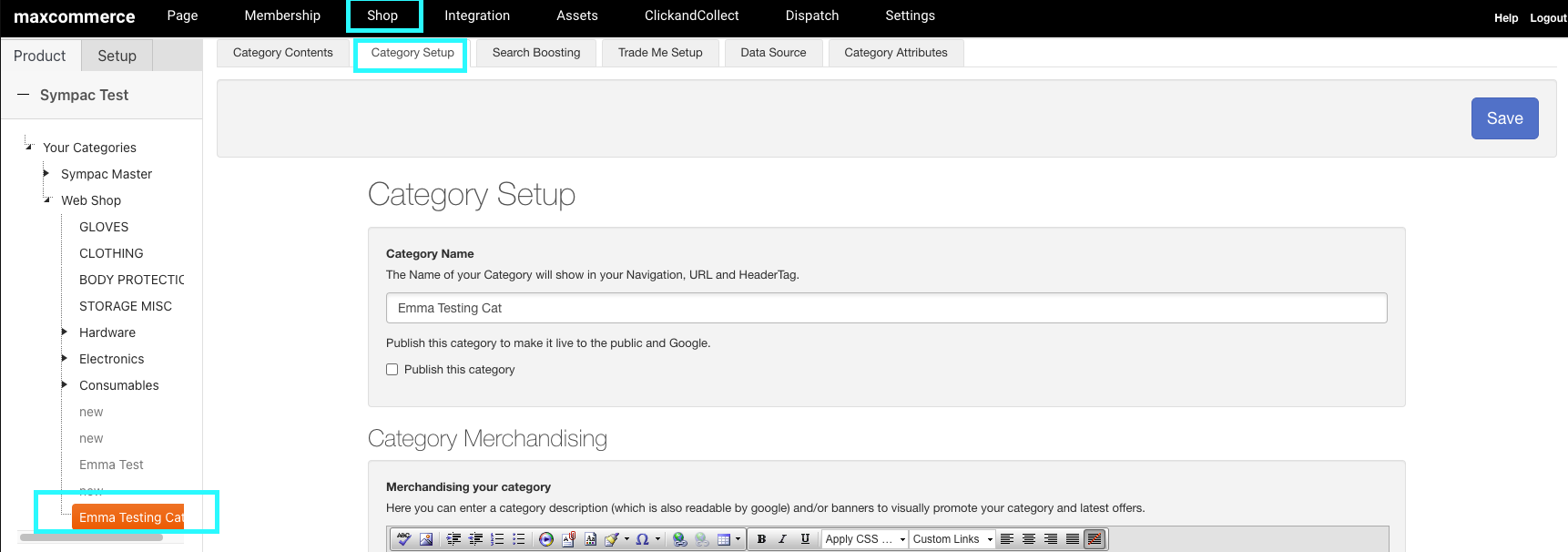
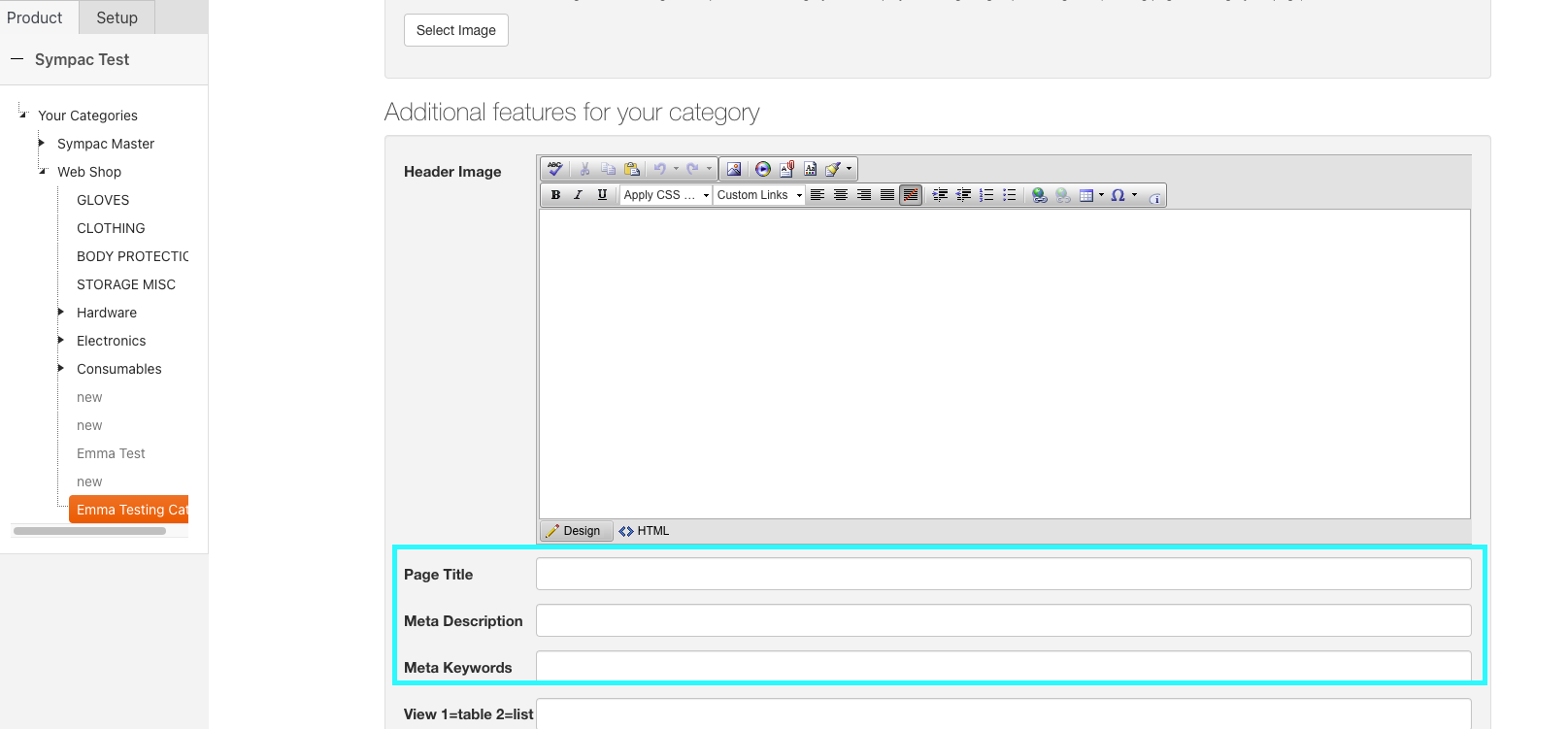
Here, you will find fields for:
- Browser Page Title Override
- Meta Keywords
- Meta Descriptions
Once entered, click Save in the top-right corner.
Find out more about Browser Title Override, Meta Keywords & Meta Descriptions here
2. Updating Category Names and URLs
- Category names can be updated directly in the CMS.
- If changing a category URL, make sure to apply a redirect to avoid broken links.
- URLs can only be updated for published categories.
3. Adding a Category SEO Description
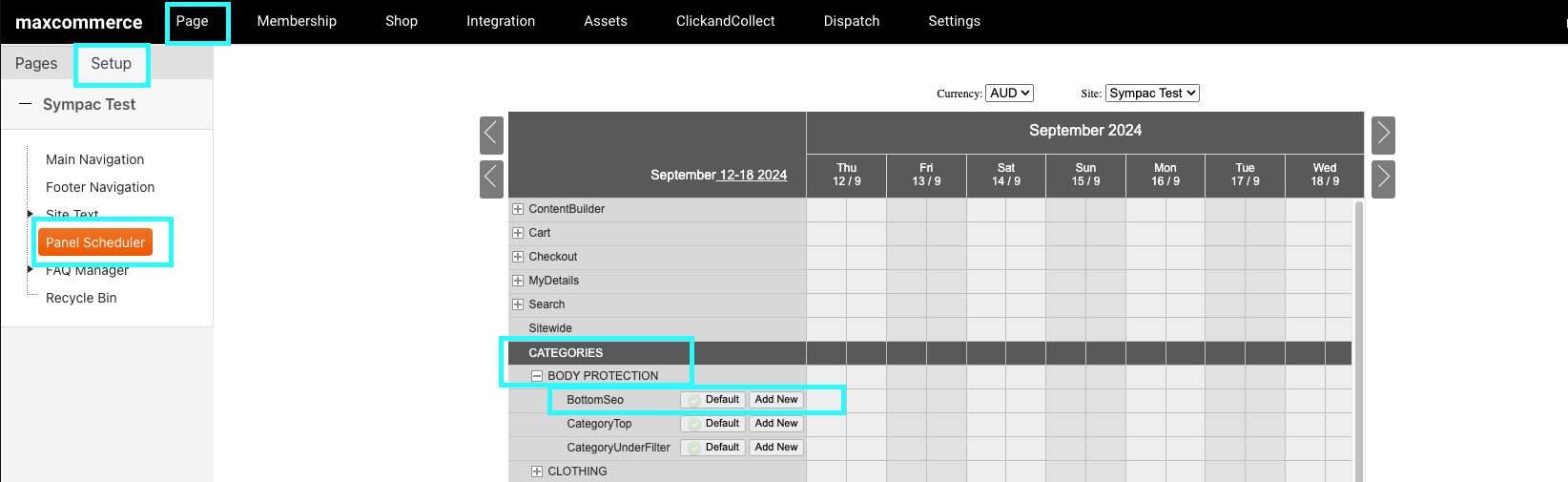
Category descriptions can be added using the Panel Scheduler Feature in MaxCommerce.
To add or schedule a category description:
- Go to CMS > Pages > Setup > Panel Scheduler.
- Locate your category and expand it to see content panels.
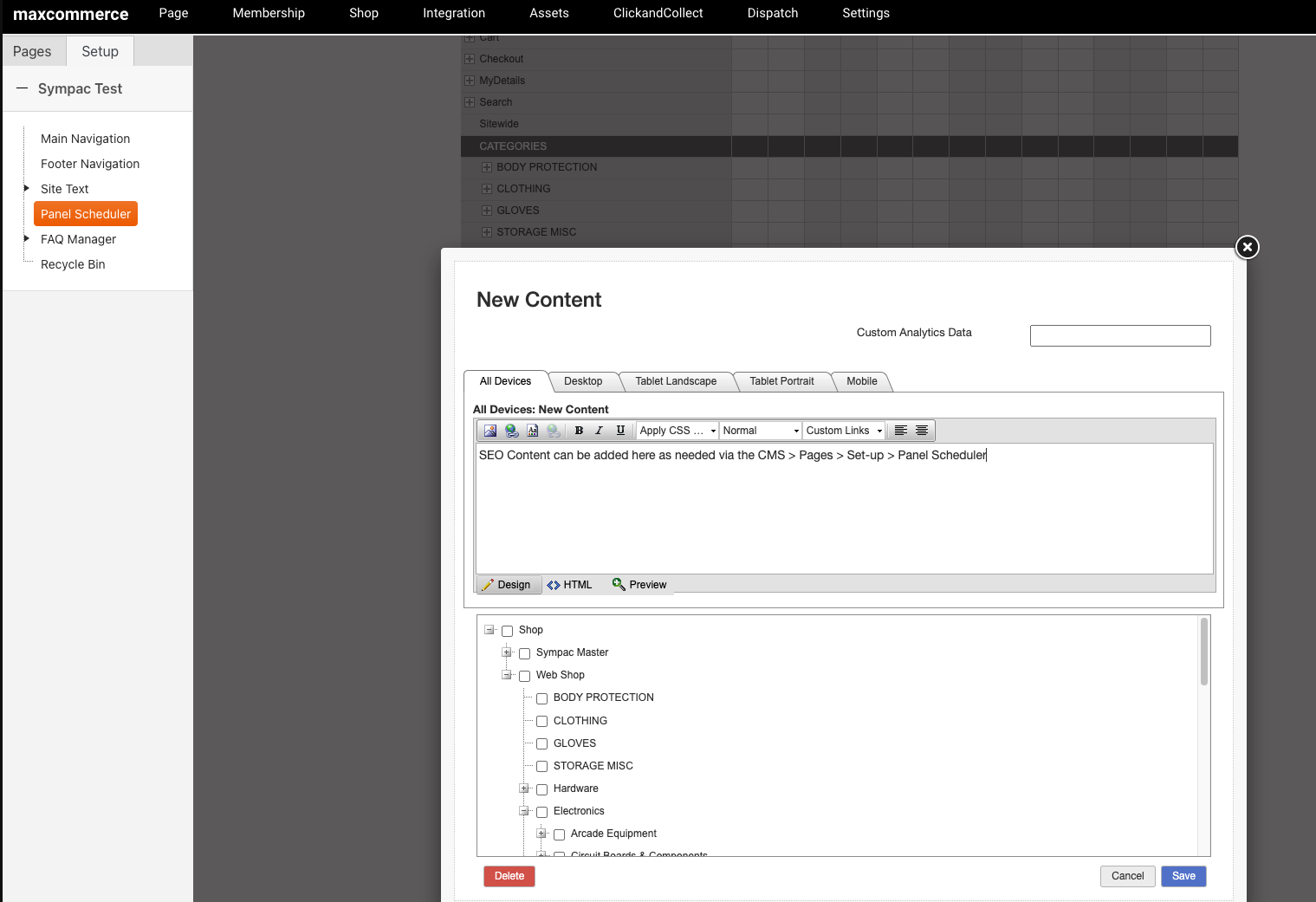
- Use the Bottom SEO Panel to add content.
There are two options when adding content here:
- Default – Always displayed until manually removed.
- Add New – Can be scheduled to show or hide at specific times.
Once entered, click Save.
Refreshing the Front-End:
- Changes may not appear immediately due to caching.
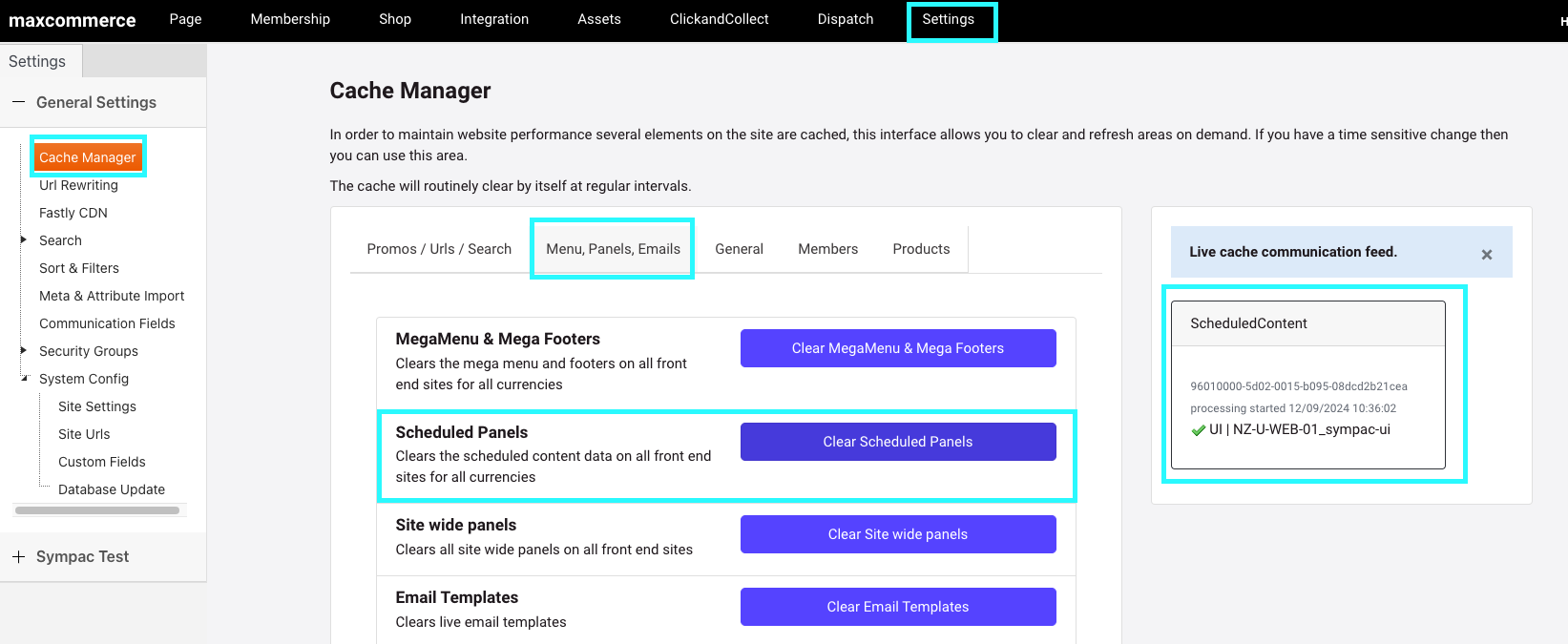
- To force a quick update, go to CMS > Settings > Cache Manager > Menu, Panels, Emails and click Clear Scheduled Panels.
- Refresh the front-end and check if the content is displaying.
4. Bulk SEO Management for Categories
If you need to update multiple categories at once, MaxCommerce provides a Bulk SEO Management tool.
Find out more about Bulk SEO Management
Using these SEO best practices and MaxCommerce’s built-in SEO tools, you can enhance your shop categories, improve rankings, and drive more traffic to your site.