SEO for Images
Overview:
SEO (Search Engine Optimization) for images is important because it helps improve the visibility of a website in search engine results, enhances the user experience, and increases web traffic
There are two key SEO considerations with images:
- The image filename - where possible try to use descriptive keyword rich file names (e.g. black-dinner-dress.jpg)
- Add ALT text to all images, this can also help if you can't add SEO friendly file names to your images.
- (Optional) Add Title Text & Long description fields to your images
Although Google can't see your images it does add to your SEO success to use good images. To make these work with Google you need to use the "alt" text attribute on images.
SEO Elements for Images
Read more about seo elements for images that you can manage via the MaxCommerce CMS
_____________________________________________________________
ALT Text for Images
ALT Text is an image attribute meaning ‘Alternative Text’ for an image. It serves several important purposes on a website:
- Accessibility: Alt text helps visually impaired users who rely on screen readers to understand the content of images. This ensures that all customers, regardless of their abilities, can navigate and engage with your site.
- SEO Boost: Alt text provides search engines with descriptions of images, helping them understand the content of your website. This can improve your website’s ranking in image search results, potentially driving more traffic.
- Error Handling: If an image fails to load, the alt text is displayed in its place, giving users context on what the image was supposed to represent.
- Product Descriptions: On an eCommerce site, alt text for product images can give detailed descriptions that clarify the product's features, materials, or benefits, which can enhance the user’s understanding and aid in purchasing decisions.
Effective alt text should be concise, descriptive, and relevant to the image and the content it supports.
Title Text for Images
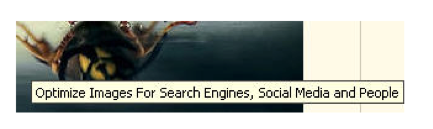
The alt attribute is for search engine crawlers. The title tag, however, is for human readers. It’s what’s revealed when you hover over the image without clicking.
So title text can be written as a call to action to prompt a reader to act. An example would be:
Alt Text | “a dozen social media icons demonstrate reach of social networks.” |
Title Text | “Learn the Don’ts of Changing Usernames on Social Networks.” |
Long Description for Images
The long description refers to a sentence or two about the image. This allows more context to be added to the image for google and users whom cannot see this. It is not a necessity to add to images but can help improve your SEO ranking
Adding SEO Details via CMS
Content Images
Editable Content Areas
When adding images to your editable content areas (i.e. site text panels) simply populate the image as you normally would.
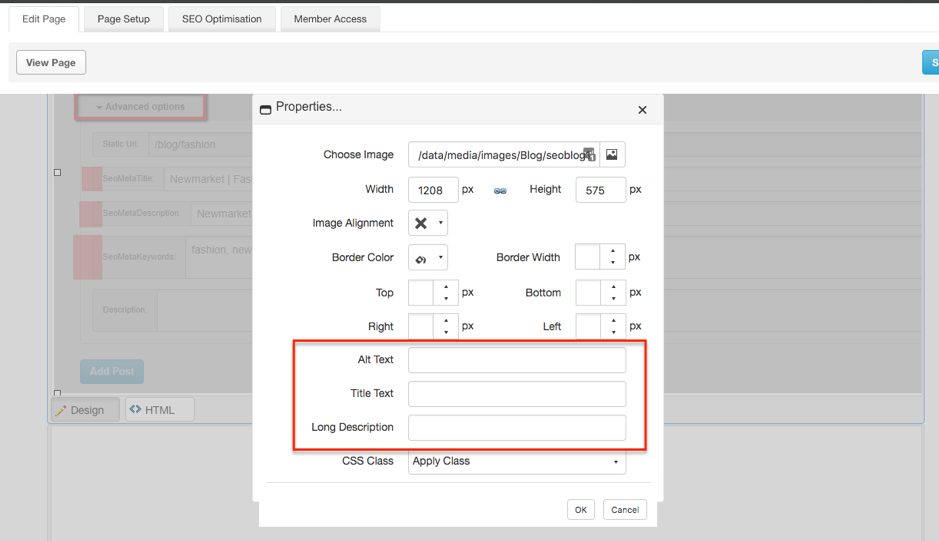
Once you have added your image you can then right click and select ‘Properties’.
Here you will see a light-window displayed featuring the above fields for you to then populate.
Content Builder/Pages
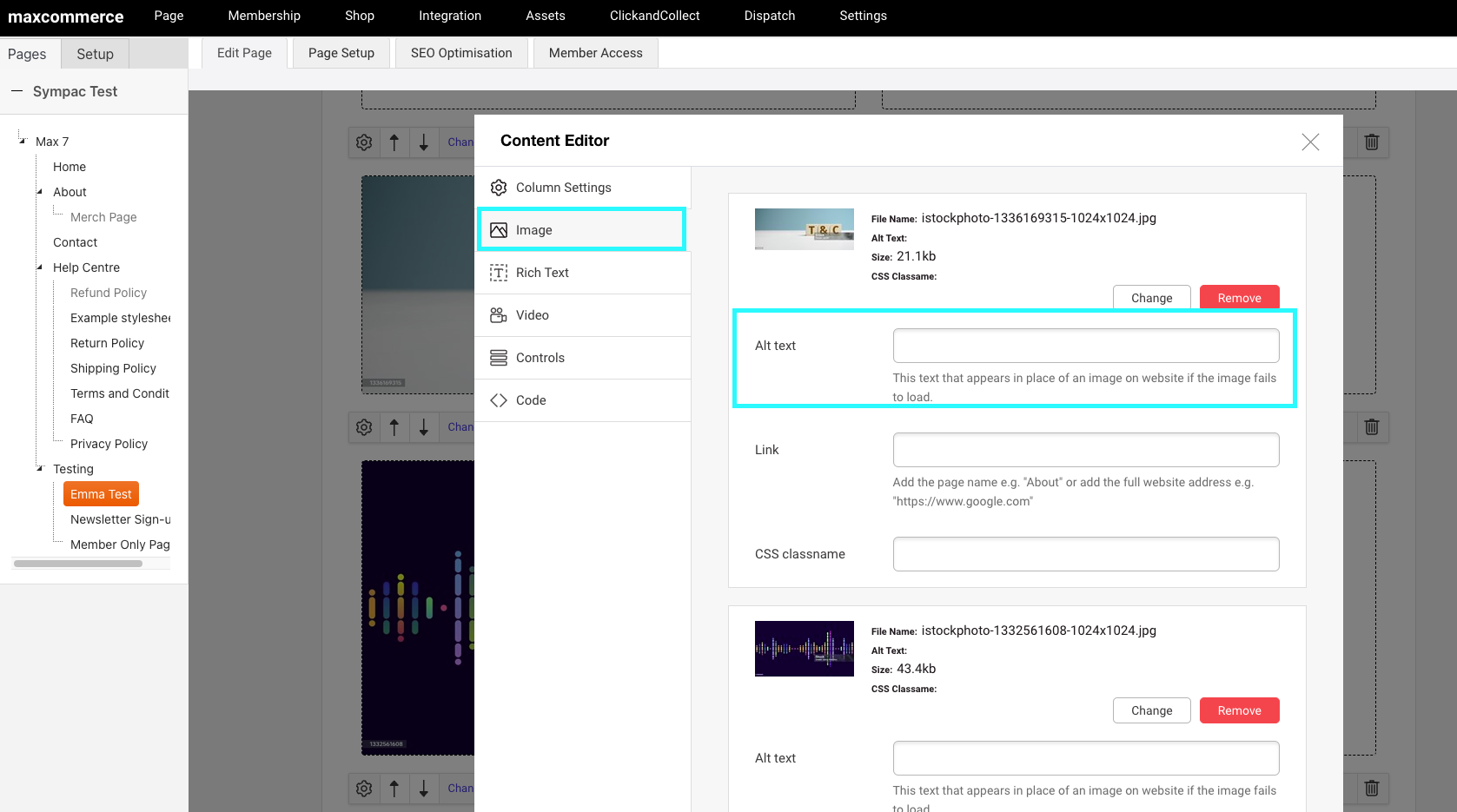
When adding images to your content builder (pages) areas simply populate the image as you normally would.
If you used an 'Image' type you will be able to add the Alt Text here:
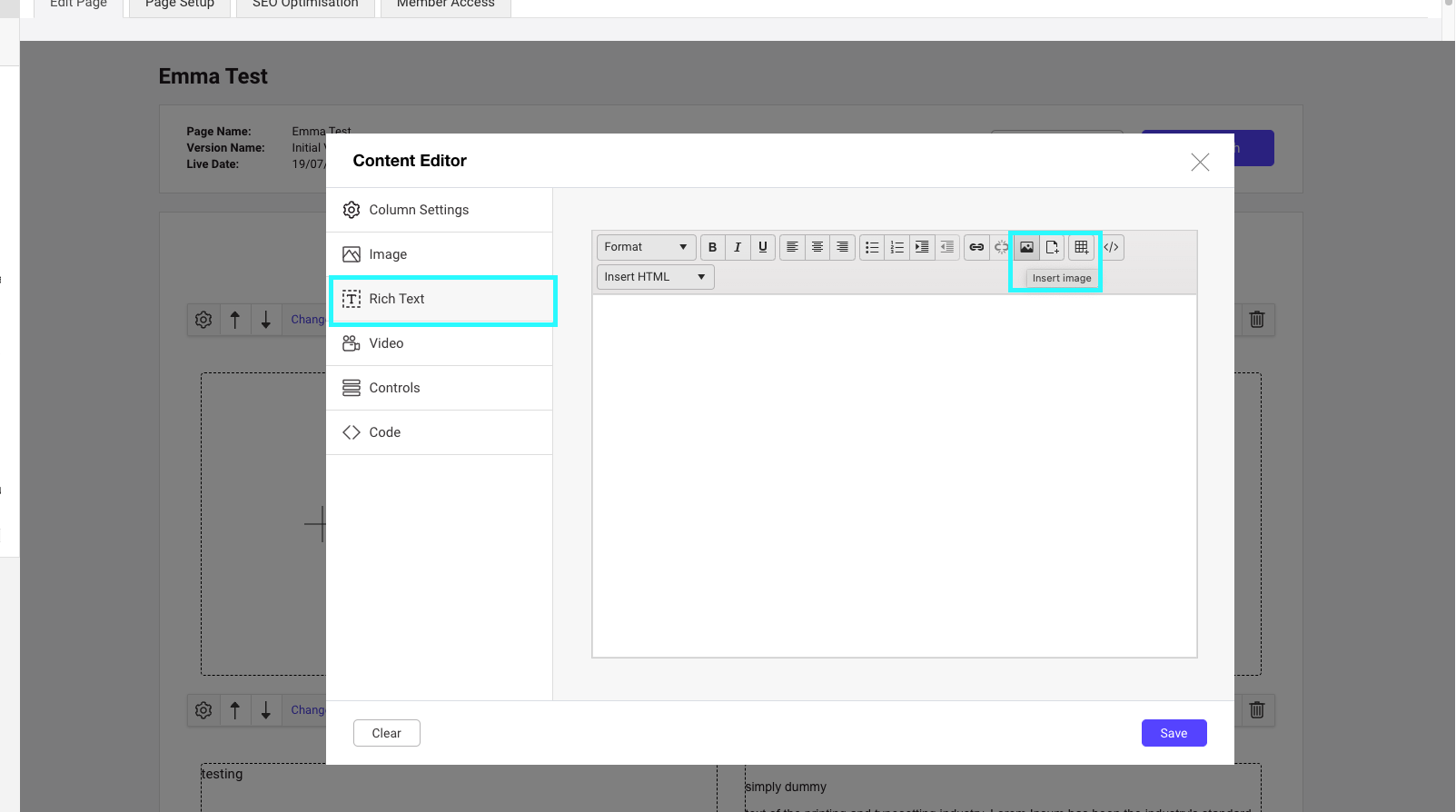
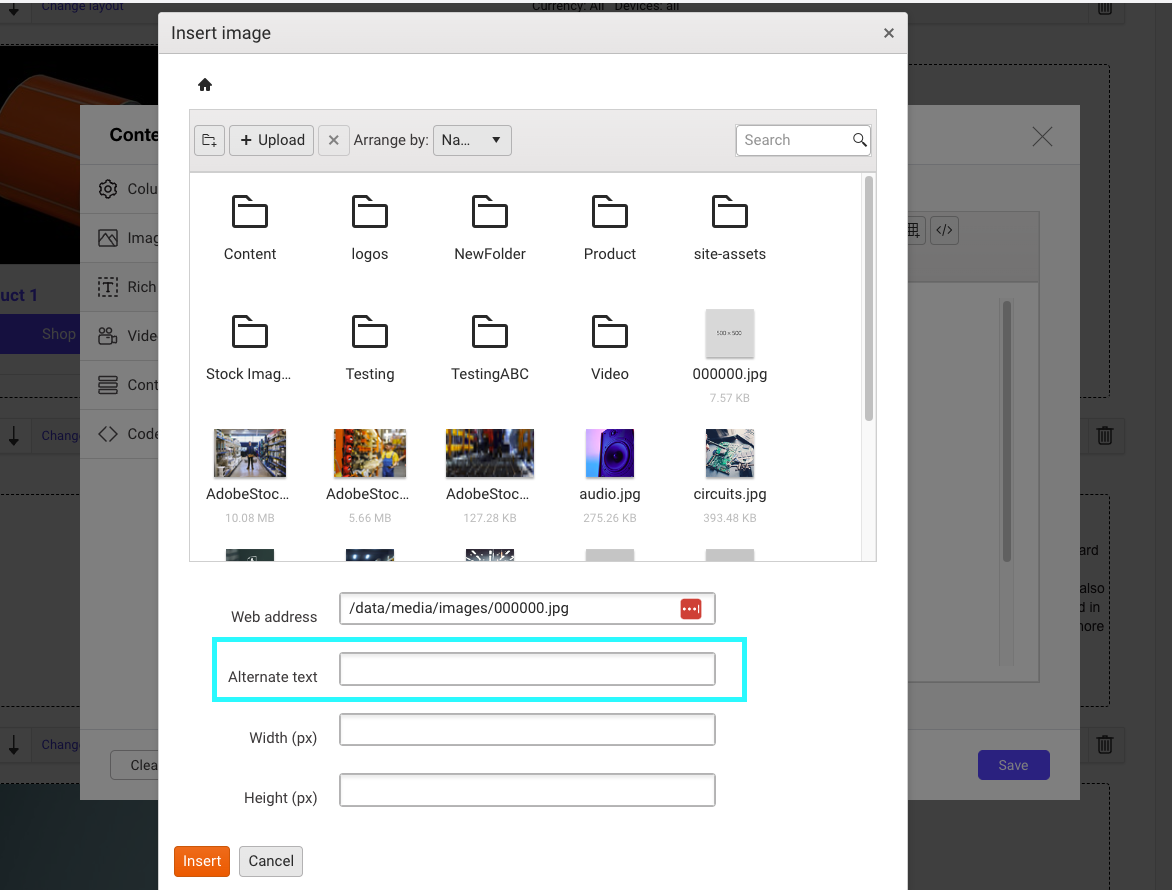
If you used an 'rich text' type you will be able to add the Alt Text here when you add the image in from your folders:
Product Images
These can be added programmatically to your products if required.