301 URL Redirects
Overview
When a new website launches, it is important to revisit the existing website to compare content page URLs indexed by Google to ensure that any changes in URLs are captured.
Upon go live, Solutionists can then implement re-directs from the old URL to the new URL to make sure that the indexed pages will redirect users to the new URL instead of taking them to an error page.
You will need to provide a list of 301 Redirects to your Solutionists Project Manager prior to go live.
Create List of 301's
To put together your list of 301s, please follow the below instructions.
Option 1: Using Screaming Frog (Free Tool)
- Download Screaming Frog:
- Visit Screaming Frog’s website and follow the prompts to download the SEO Spider tool.
- Generate URL List:
- Use Screaming Frog to crawl your website and generate a list of current URLs.
- Enter your website's domain into the application
- Ensure the tool is crawling Subdomain & then click Start
- Once the crawling has completed, go to the URLs tab & use the export button to download the file.
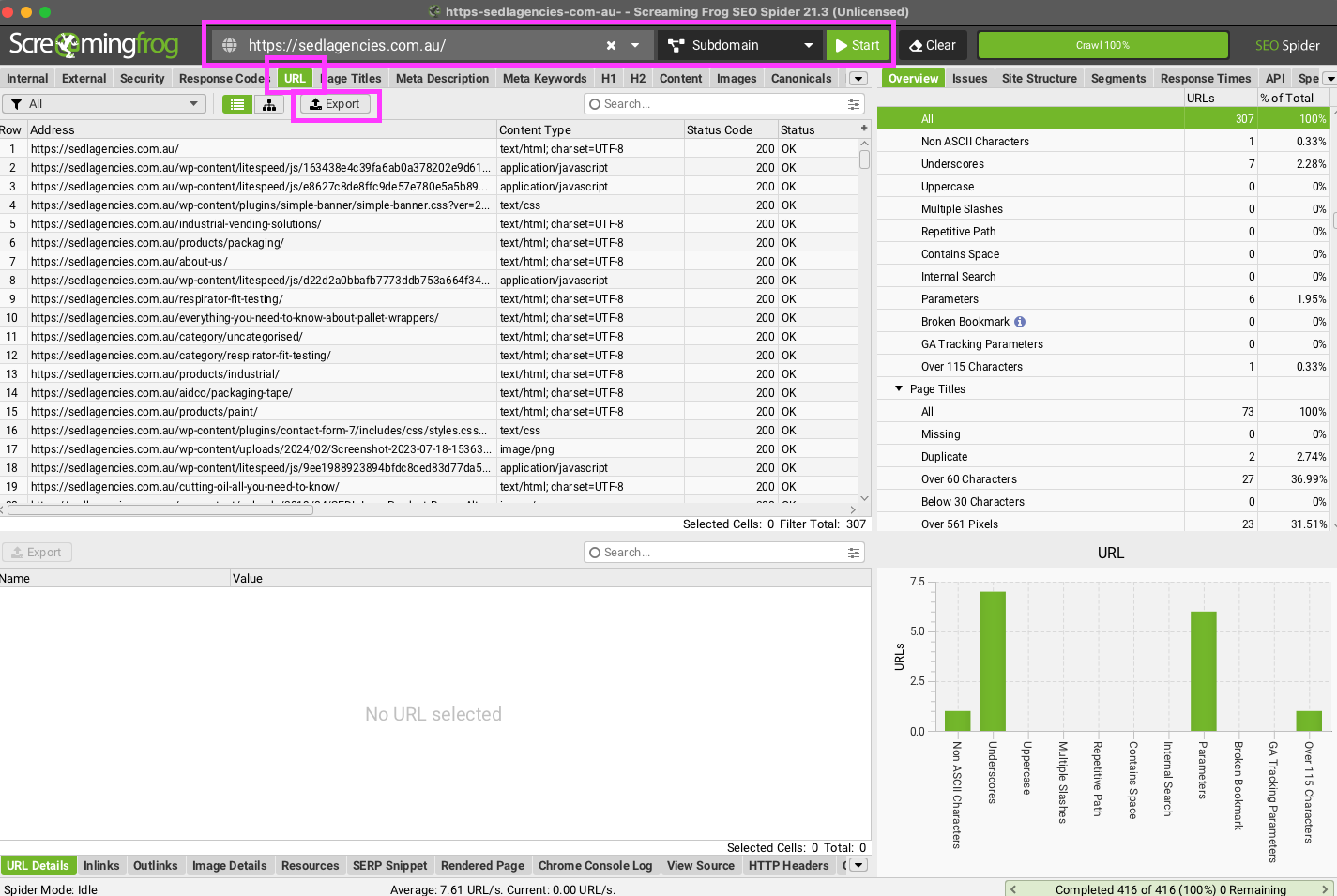
- Download 301 Redirect Spreadsheet Template:
- Download the 301 Redirect Spreadsheet here
- This template includes an example to show the expected format for listing current & new URLs, as well as some notes/FYIs to assist with populating the document.

- Populate the Template:
- Add your current & new URLs into the spreadsheet & provide this to the Solutionists Team to implement the redirects for you.
Option 2: Using Google
- Launch Google:
- Go to Google, i.e., https://www.google.co.nz for NZ or https://www.google.com.au for AU
- Enter Domain Details:
- Type ‘site:’ followed by your website domain name into the search bar. This ensures that Google search results only return pages that start with your domain name. For example:
site:http://www.solutionists.co.nz
- Type ‘site:’ followed by your website domain name into the search bar. This ensures that Google search results only return pages that start with your domain name. For example:
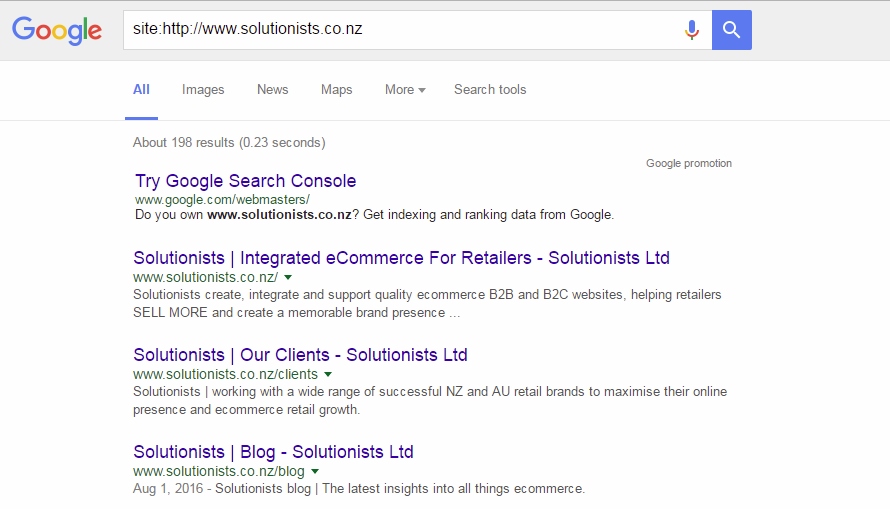
- Review Results:
- Bring up your new site and start going through the Google Search results one by one to compare the URL that Google has indexed to the URL of the same page on your new site.
- Populate 301 Spreadsheet:
- If it is a different URL, then include it in an Excel spreadsheet with the old URL in one column and the new URL in another column.
- Download the 301 Redirect Spreadsheet here
- Provide this to the Solutionists Team to implement the redirects for you.
Common Questions
Do I need to include the domain names?
Don’t worry about including the full domain name since it is likely to differ when you compare your live site to your new site test URL (e.g., www.solutionists.co.nz versus solutionists.uat.solutionists.co.nz).
- All you need to include in the spreadsheet is the filename, including the forward slash.
- Example: Instead of
www.solutionists.co.nz/blog_354.aspxandsolutionists.uat.solutionists.co.nz/blog.aspx, use/blog_354.aspxand/blog.aspx.
Do I need to include URLs for Categories and Products?
- Upgrades from an earlier MaxCommerce version: No need to include category or product page URLs. Automated URL rewrite rules will be created upon go live.
- New Solutionists clients migrating from another platform: You may need to include category and product page URLs. Check with your Solutionists Project Manager if unsure.
Examples:
- Category Page:
/menswear/footwear/converse/c413/Shop-Online_298.aspx?CategoryId=483 - Product Page:
/product/glenscott-henley-i33338/ProductDetail.aspx?productid=33535
What if Google has indexed a page that no longer exists on my new website?
- Provide an equivalent page URL or redirect to the homepage (
/).
Examples:
- Old URL:
/where.aspx
New URL:/store-finder.aspx - Old URL:
/archive_1468
New URL:/
What if the only difference is case, i.e., upper case vs. lower case?
- Don’t worry about these. The system does not differentiate between upper and lower case.
- Example:
/Contact-Us.aspx=/contact-us.aspx
What if the only difference is the “aspx” at the end of the URL?
- Don’t worry about these. The system considers pages with and without ‘aspx’ to be the same.
- Example:
/Contact-Us.aspx=/Contact-Us
This guide provides a comprehensive process for creating and managing 301 redirects, ensuring a smooth transition for your new website.