Autotask Overview
Autotask Overview
The Autotask Client Portal lets you log tickets and view open tickets as well as projects on your company dashboards. You can also interact with us by adding notes to tickets.
Types of Work
In Autotask, we group requests into one of the following categories, depending on the nature and urgency of the request. Your company dashboards will feature and group requests for you accordingly.
Helpdesk Tickets
Every new ticket logged will start off as a helpdesk ticket. It will get triaged by our Support team from there, which includes gathering further details from your team or internally discussing to determine next steps. If the ticket stays in the Helpdesk, it is generally anything that doesn't need a support release or it might also include smaller bugs and change requests that can be completed quickly and easily. It could be an information request, data assistance, promotions, content assistance, assistance with third party investigations (i.e. integration related queries) etc.
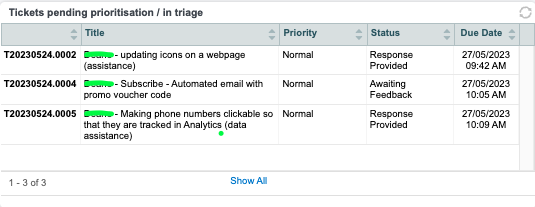
If the ticket requires estimation or further work, our Support Coordinator will move it into a scheduled release, depending on the nature of the request and its urgency.
Support Release Tickets
When a helpdesk ticket requires more planning and time, it will be moved to a scheduled release. From here, the tickets will be worked on accordingly.
- Highest Business Priority - your active release (current month)
Each ticket will have two key dates:
Due date = UAT release date
Live Release date = LIVE release date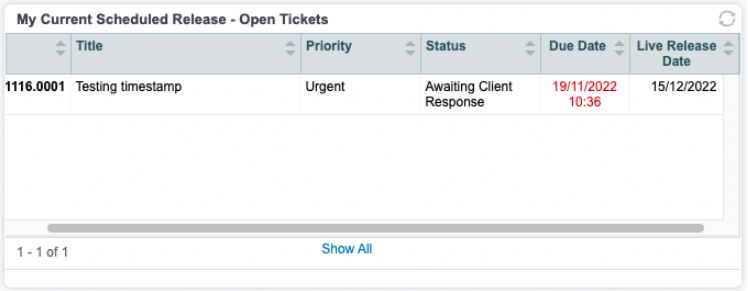
- Next Release - your next release (next month)
There may be a Live Release date set if already planned. Otherwise, this field will be blank.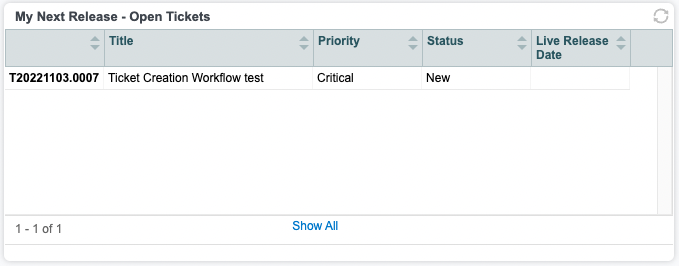
- Support Backlog - your ticket queue (not scheduled)
Dates usually will not be set, as these will be decided when an item moves from the backlog to the future or current release.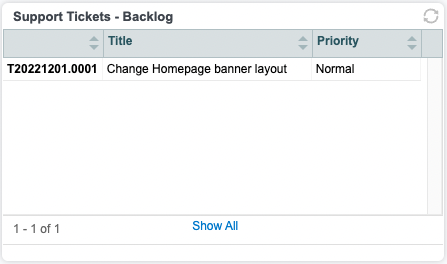
Roadmap Items
When a helpdesk ticket is identified as a potential project (i.e. anything sizeable that requires scoping & scheduling as a project), this will be handed over to your Account Manager. Your Account Manager will create a separate project in Autotask to work with you to gather your requirements and get the job fully scoped and estimated.
Upon your approval, the project will then be scheduled and run through development by your Project Manager. The project schedule will usually be aligned with one of your support releases.
Existing Project - Tickets
You can also log project tickets through the Client Portal Helpdesk. When you submit a project ticket, your project manager and team will be notified. From here, the project ticket will be associated to the project and triaged by the project team.