Getting Started
Autotask
Your Company Dashboard
How to log into Autotask
Autotask Overview
Navigating the Client Portal
How to Log a Ticket
Managing Your Tickets
How to enable Client Portal pop-ups in your browser
Ticket Report in Autotask
Statuses of Tickets
Priorities of Tickets
Shop
Content Management
Settings
Members
SEO
Overview of SEO
SEO for Images
SEO for Blogs
SEO for Pages
SEO for Shop Categories
SEO for Products
Google My Business Profile
Bulk SEO Management
New Website Builds
User Acceptance Testing (UAT)
UAT Overview
Placing Test Orders on UAT
Test Cases
Tips for Troubleshooting
UAT Feedback
Content Entry Checklist
Go Live Prep
Projects & Support
Managing the Front-end Stock Message
Overview
MaxCommerce allows you to customise how product stock quantities are displayed to your customers on the website. By default, if a product has stock available, it is purchasable and will show an “In Stock” message. You can control whether this message shows the actual stock count or a generalised value (e.g. "10+ In Stock").
This guide explains how to configure the stock display message using the UI.StockMaxNumber Max Setting in the CMS.
Customising the Stock Message
You can choose between two types of front-end messages:
- Exact Stock Display – e.g. “88 In Stock”
- Generalised Stock Message – e.g. “10+ In Stock”
To update this setting:
- Log in to your MaxCommerce CMS.
- Navigate to:
CMS > Settings > Max Settings - In the top right corner, click “Old Version”.
- In the name filter, filter by:
UI.StockMaxNumber - Click on the setting & then the Edit button to make changes.
- In the Value field, enter the number you'd like to use for the threshold.
- For example, enter
10to display:- “10 In Stock” if there are 10 items
- “10+ In Stock” if there are more than 10
- "[actual stock] In Stock" if there are less than 10
- For example, enter
- Click Save to apply your changes.
How the Setting Works
- If stock quantity > value set, the front-end will display:
[Value]+ In Stock
(e.g. if set to 10 and stock is 88 → shows “10+ In Stock”) - If stock quantity ≤ value set, the actual stock will display
(e.g. “3 In Stock”) - If value is set to 0, the rule is disabled and the site will always show the actual stock number.
Example Scenarios
Stock Qty | Value in Setting | Displayed Message |
88 | 10 | 10+ In Stock |
88 | 5 | 5+ In Stock |
88 | 90 | 88 In Stock |
88 | 0 | 88 In Stock (actual) |
Front-End Display of Stock Message
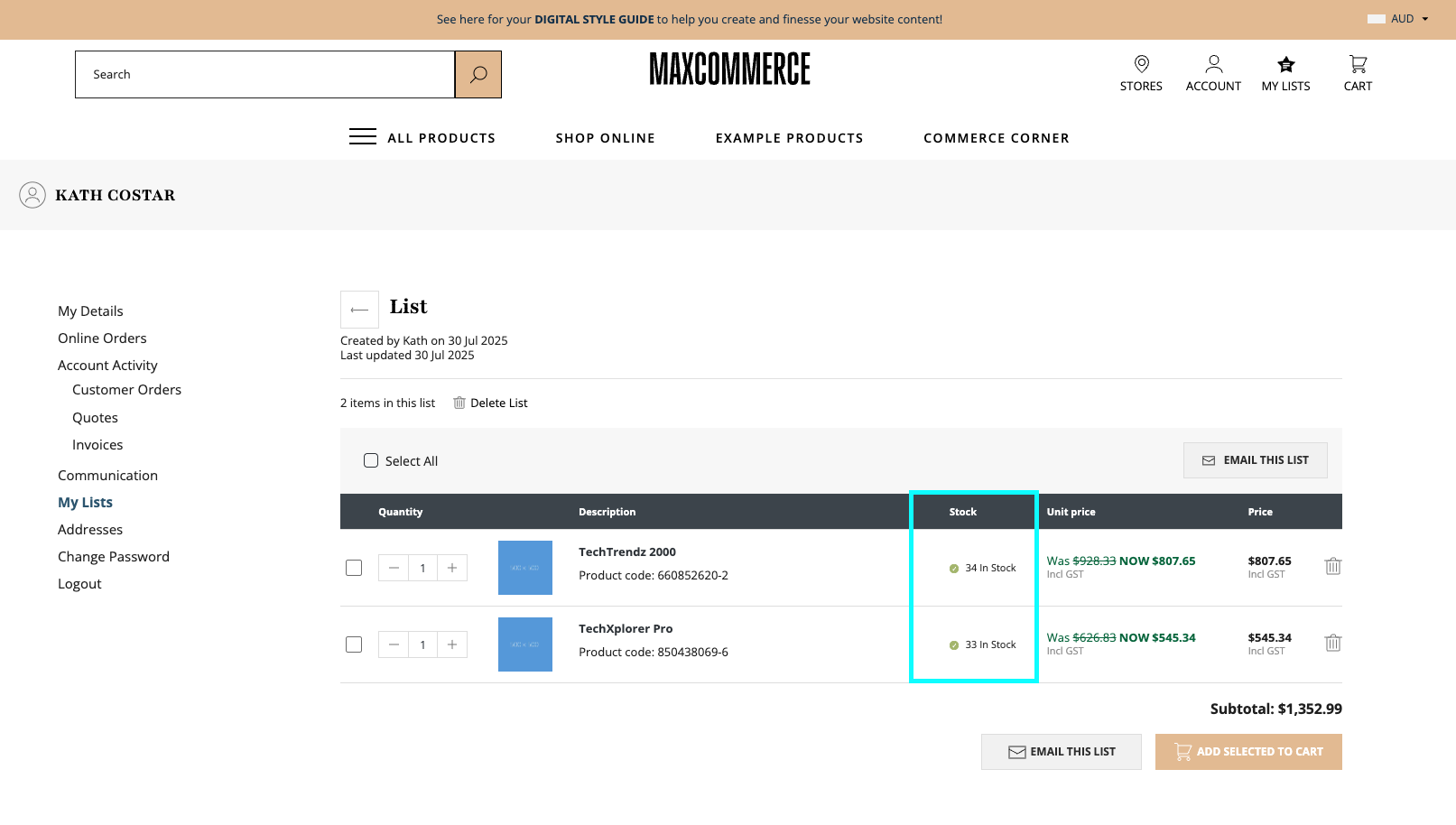
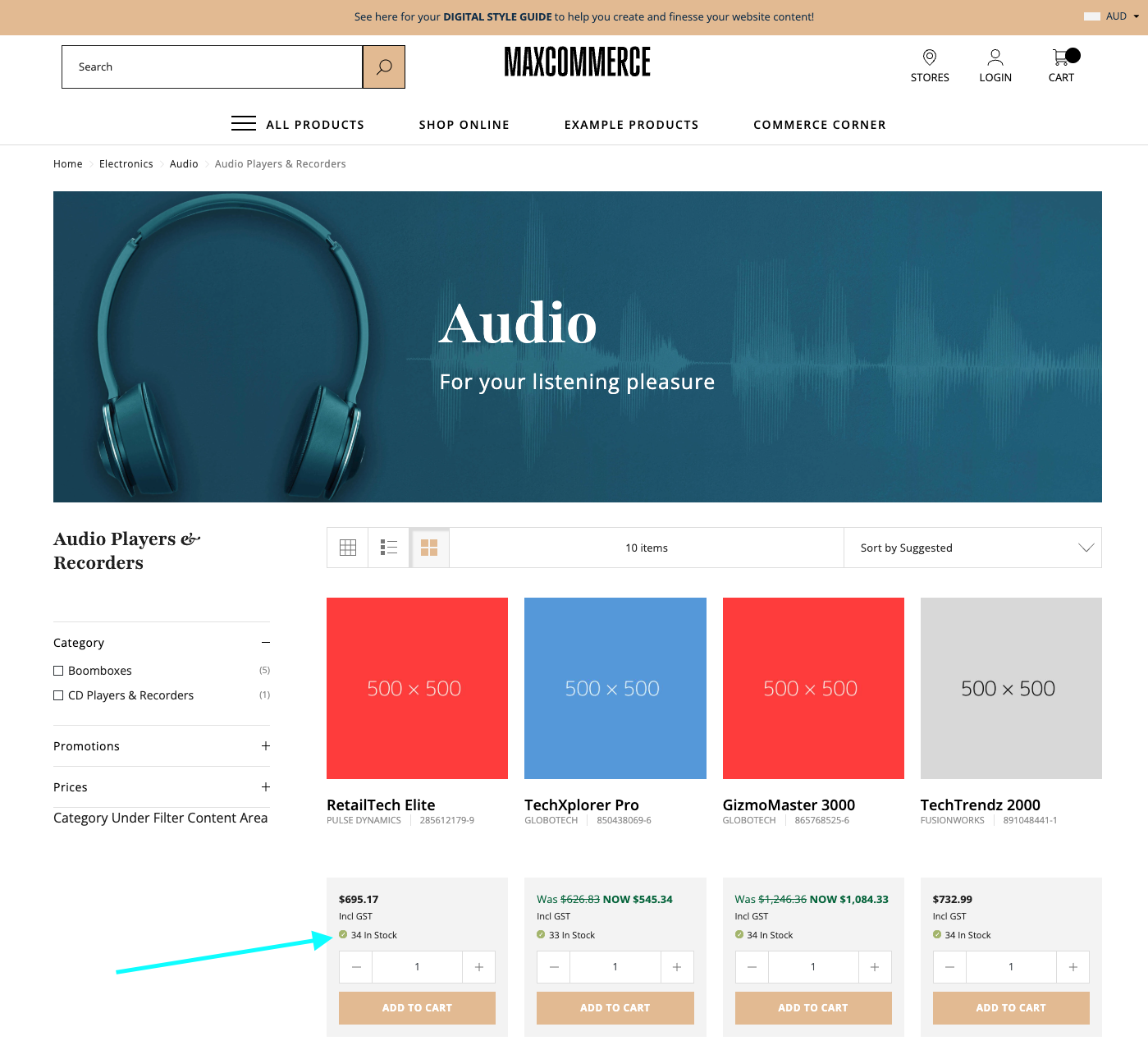
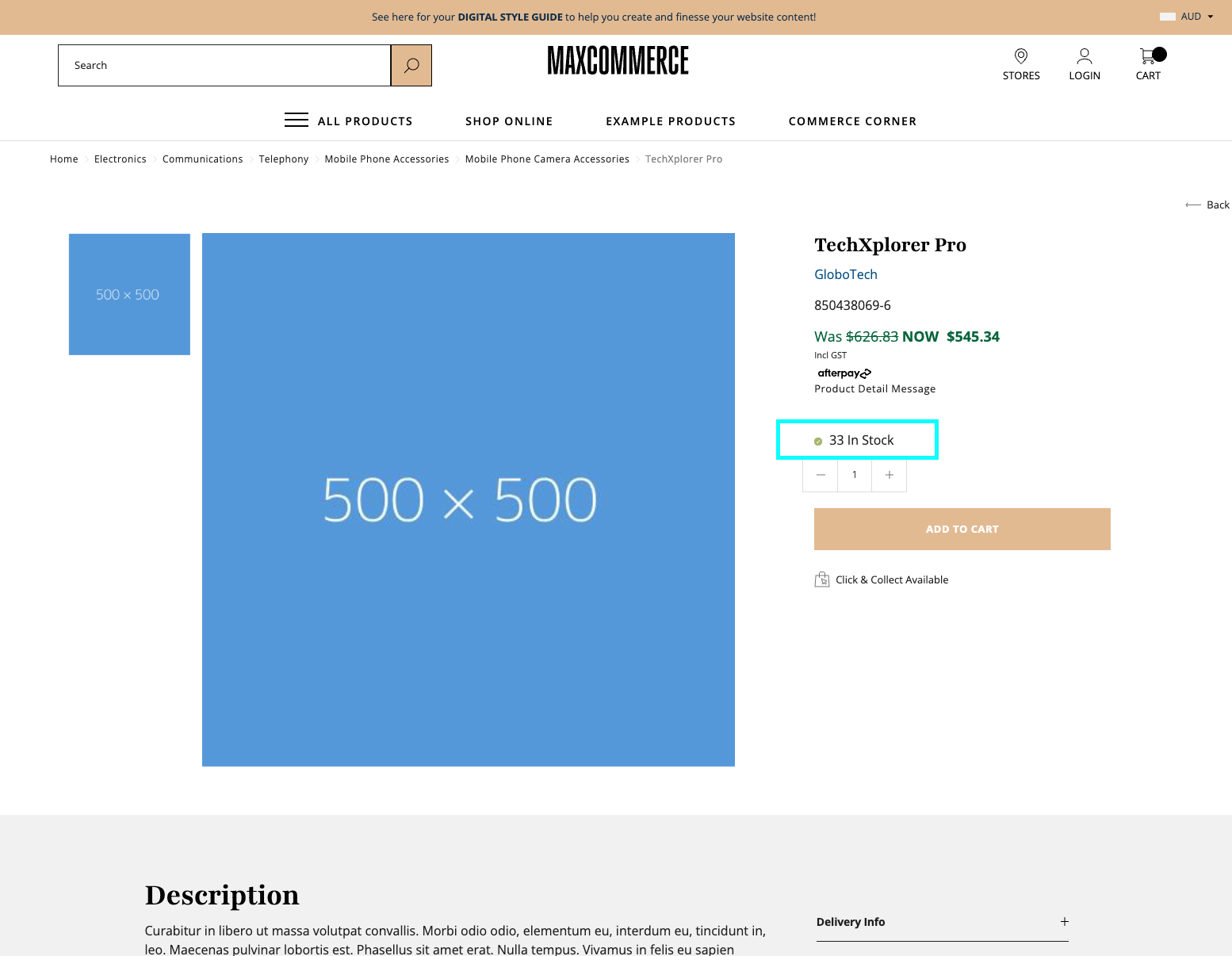
You can expect the In Stock message to display on your website's Product List Page (PLP), Product Detail Page (PDP) and the My Lists area (if the user is logged in).
- Product List Page:
- Product Detail Page:
- My Lists: