Getting Started
Autotask
Your Company Dashboard
How to log into Autotask
Autotask Overview
Navigating the Client Portal
How to Log a Ticket
Managing Your Tickets
How to enable Client Portal pop-ups in your browser
Ticket Report in Autotask
Statuses of Tickets
Priorities of Tickets
Shop
Content Management
Settings
Members
SEO
Overview of SEO
SEO for Images
SEO for Blogs
SEO for Pages
SEO for Shop Categories
SEO for Products
Google My Business Profile
Bulk SEO Management
New Website Builds
User Acceptance Testing (UAT)
UAT Overview
Placing Test Orders on UAT
Test Cases
Tips for Troubleshooting
UAT Feedback
Content Entry Checklist
Go Live Prep
Projects & Support
Managing Your Tickets
Within the Autotask Client Portal, you can click into a ticket to communicate with us from your dashboard widgets, the Homepage or via the Top navigation.
Ticket Communication
You can communicate with our team by adding "Notes" to tickets.
To add a note, you will need to click into a ticket, where you can add a note one of two ways:
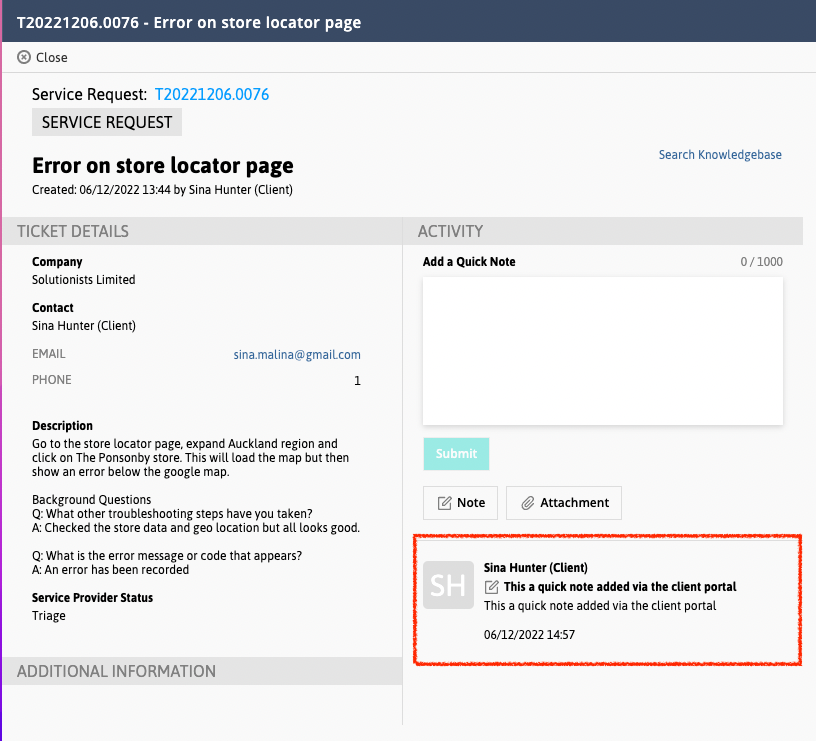
- The Quick Note is just for quick updates you want to add to the ticket. This will not trigger a notification email to our team. It will just add the note so that next time we work on the ticket, your note is visible to us. As soon as you submit your note, you will see it on screen as below.
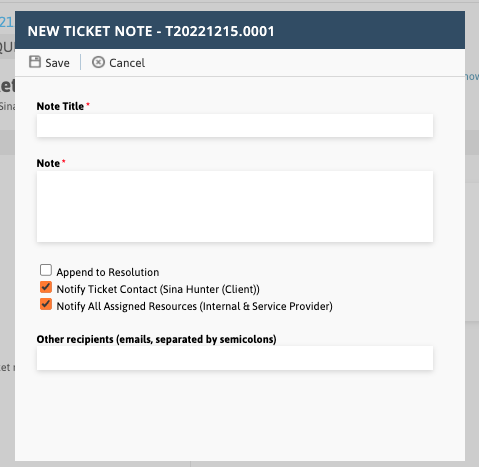
- If you would like to notify us, select the "Note" button. This opens a new window where you can add a note title, the note details and select who you would like to notify. By default, the following will be ticked:
- Ticket Contact - This will be your company's contact for the ticket - it is your team member who logged the ticket.
- Assigned Resources - This will be anyone from our team who is assigned to the ticket (i.e. our team who are working on the ticket).
- Other Recipients - You may choose to add specific email addresses if you would like anyone else to receive an email notification of your note.
Ticket Status
When you submit a note against a ticket, the ticket status gets automatically updated to "Response Provided".
When it comes to closing off tickets that have been completed, our team will go through any tickets and close off tickets that have gone live as part of a release.
When it comes to "Awaiting Client Response" or "On Hold" tickets, our team will follow up with you on these items and ensure we can either move them along for you or close them off.
If you are happy to close a ticket, you may also submit a note on the relevant ticket to let us know and our team will go ahead and close the ticket for you.