Getting Started
Autotask
Your Company Dashboard
How to log into Autotask
Autotask Overview
Navigating the Client Portal
How to Log a Ticket
Managing Your Tickets
How to enable Client Portal pop-ups in your browser
Ticket Report in Autotask
Statuses of Tickets
Priorities of Tickets
Shop
Content Management
Settings
Members
SEO
Overview of SEO
SEO for Images
SEO for Blogs
SEO for Pages
SEO for Shop Categories
SEO for Products
Google My Business Profile
Bulk SEO Management
New Website Builds
User Acceptance Testing (UAT)
UAT Overview
Placing Test Orders on UAT
Test Cases
Tips for Troubleshooting
UAT Feedback
Content Entry Checklist
Go Live Prep
Projects & Support
Accessing your MaxCommerce CMS
Overview:
To access your CMS (Content Management System) of your MaxCommerce website you can follow the below instructions.
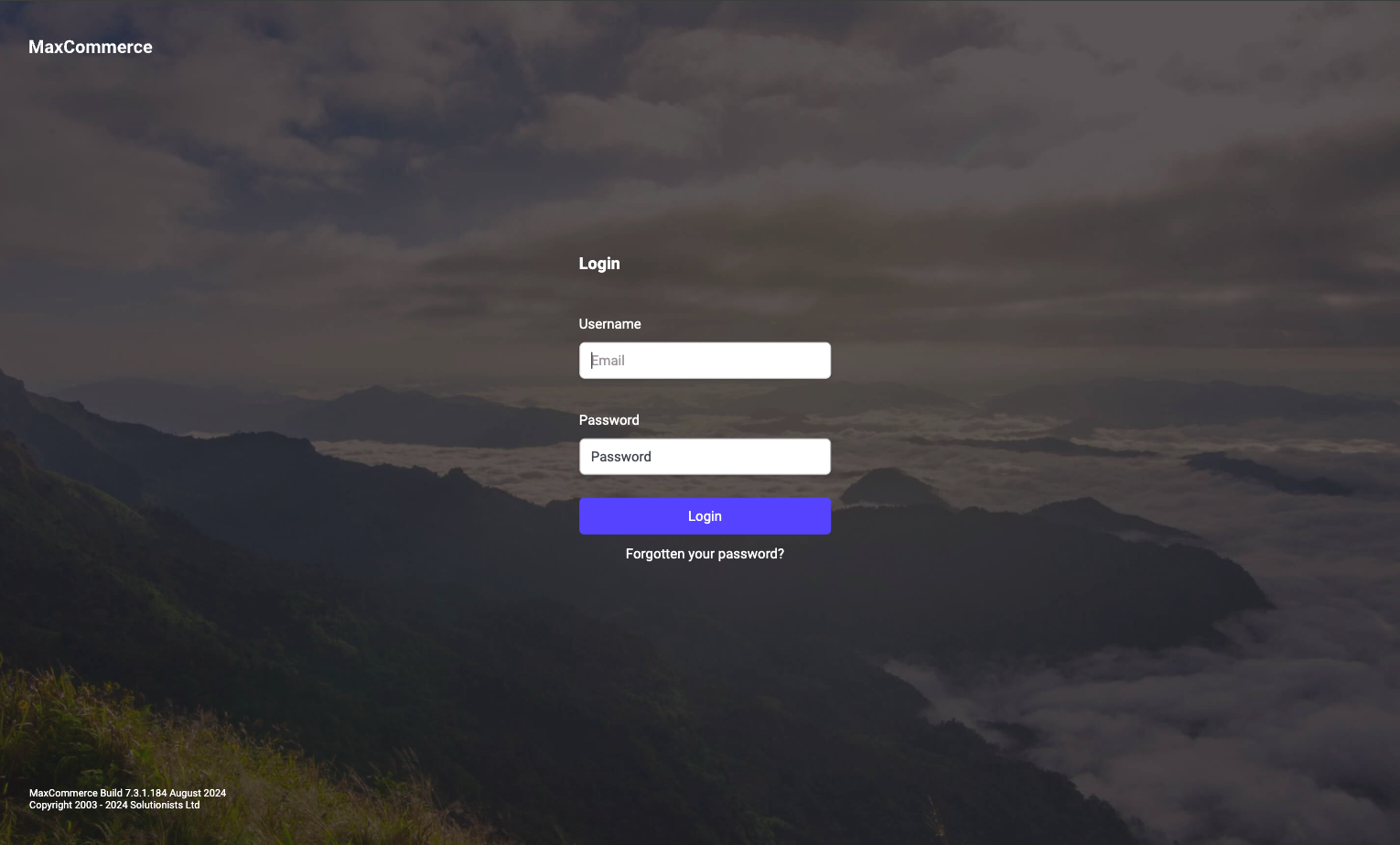
(Please note your login screen design may differ from the image above depending upon what version of MaxCommerce you have)
How to Login to your MaxCommerce CMS:
Each admin user of your website will have their own unique login.
(Upon the launch of your website Solutionists will assist with creating you an initial admin login and any additional logins required you will have the ability to create and manage as needed - see next section for further details).
Your login will consist of the following:
- Username - This will be your email address
- Password - we recommend using a strong password
A specific admin URL will also be provided to you where you will enter the above details and from there have access to your MaxCommerce website CMS.