Getting Started
Autotask
Your Company Dashboard
How to log into Autotask
Autotask Overview
Navigating the Client Portal
How to Log a Ticket
Managing Your Tickets
How to enable Client Portal pop-ups in your browser
Ticket Report in Autotask
Statuses of Tickets
Priorities of Tickets
Shop
Content Management
Settings
Members
SEO
Overview of SEO
SEO for Images
SEO for Blogs
SEO for Pages
SEO for Shop Categories
SEO for Products
Google My Business Profile
Bulk SEO Management
New Website Builds
User Acceptance Testing (UAT)
UAT Overview
Placing Test Orders on UAT
Test Cases
Tips for Troubleshooting
UAT Feedback
Content Entry Checklist
Go Live Prep
Projects & Support
Navigating the Client Portal
When you log into the client portal of Autotask, you will land on your Company dashboards by default. From here, there are a few different ways to navigate to other areas within the client portal.
Dashboard
You can interact with items in your dashboard by clicking into specific widgets to view details of a particular ticket.
For example, if you'd like to see more details on a particular ticket, you can click on "Show All" within the widget.
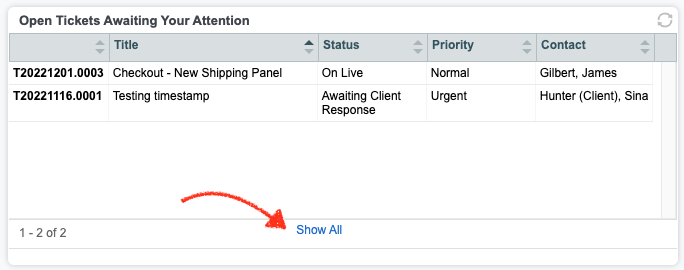
This will open up the below tickets list.
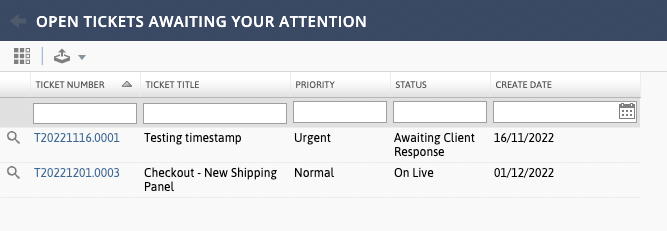
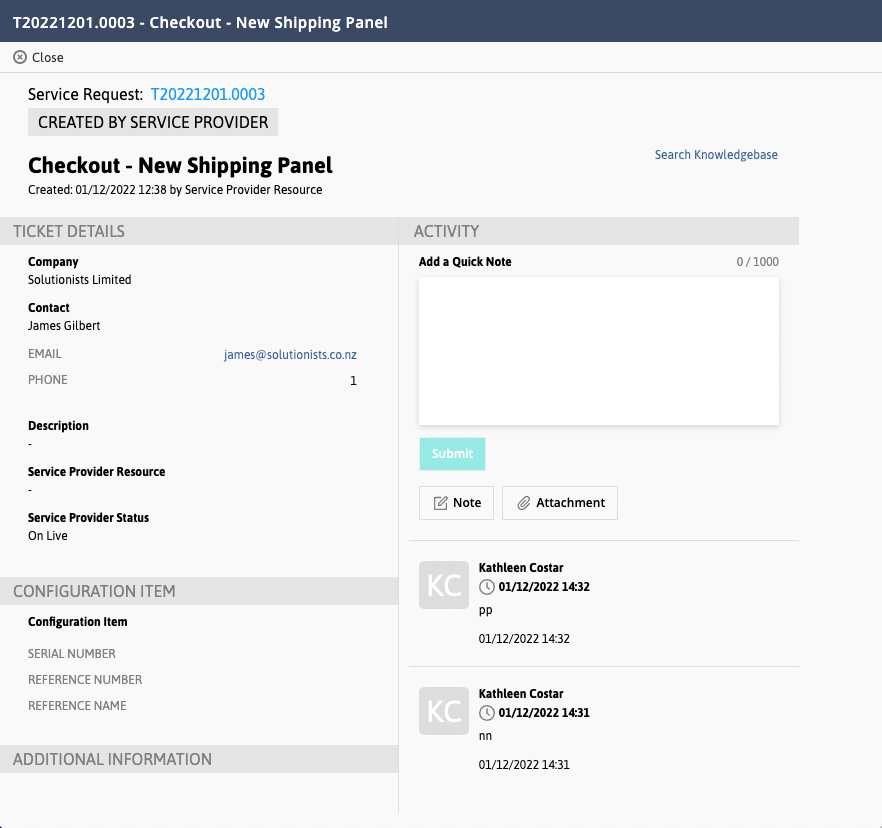
To see more details and view any notes that have been previously submitted by either our team or your team against a ticket, click on the ticket.
Homepage
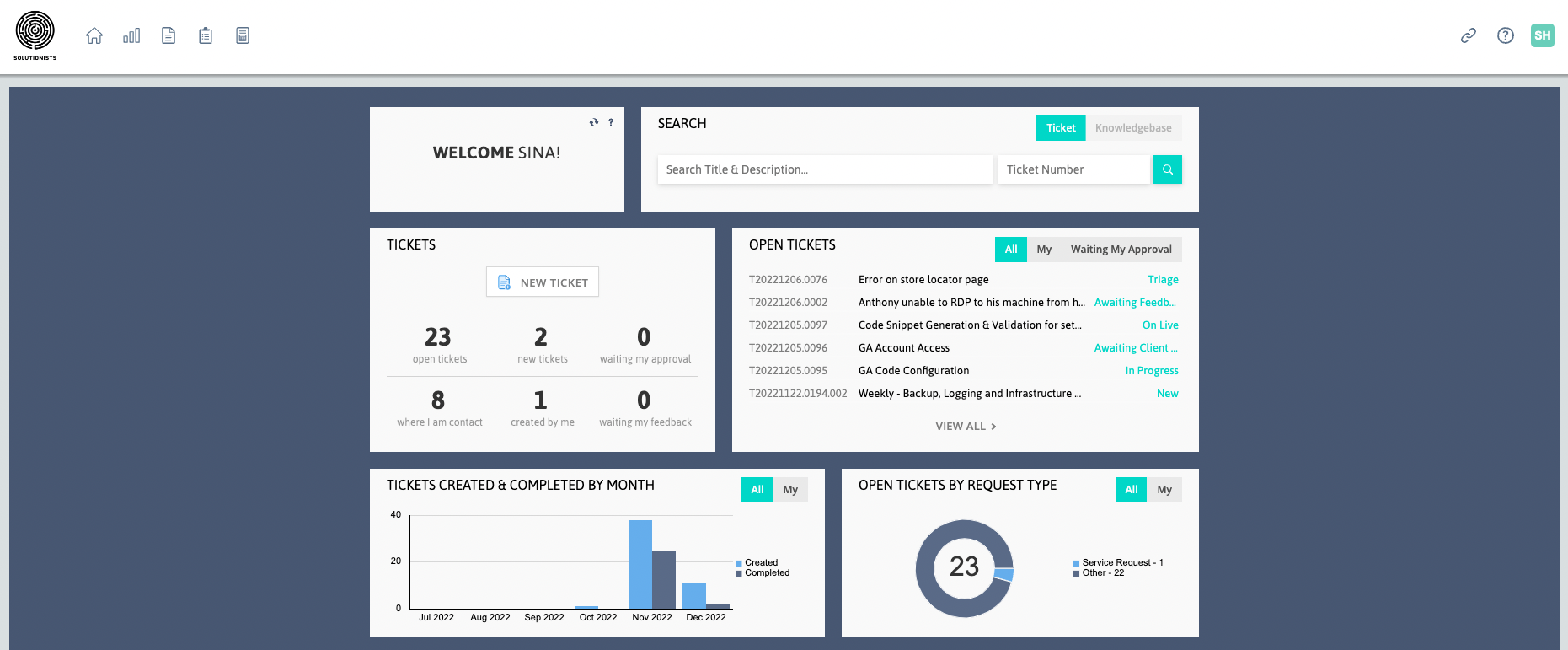
The "Home" icon will give you a high level overview including a ticket search, total tickets and a list of all your company tickets.
You can also create a new ticket on the homepage by clicking "New Ticket". This will open up a new window to log a support ticket - you can follow the same steps as outlined here.
Top Navigation
You can click on one of the following icons in the top navigation menu to access tickets and projects.
Dashboard
To navigate back to your dashboard, you can hover over the chart icon in the top navigation.

Tickets
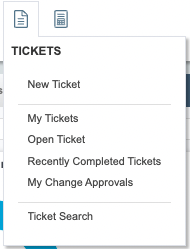
You can access a list of tickets via the Tickets menu icon below. You can either view tickets where you are the ticket contact only (My Tickets), or a full list of all of your company's tickets (Open Ticket).
You can also create a new ticket (Helpdesk/Support & Projects) via this menu drop down and access the ticket search.
Ticket Report
Autotask has a ticket report feature that lets you run a report using some basic filter options and selecting the columns you want to report on. See more here.